Install Windows Subsystem for Linux
Install Windows Subsystem for Linux (WSL) after completing the native Windows setup. WSL lets you run Linux tools, including Valgrind, on your Windows computer.
WSL has its own compiler, Git configuration, and VS Code extensions. Your course projects can remain in the Windows filesystem and be accessed from both Windows and WSL.
You must have an up-to-date copy of Windows 10 or Windows 11.
Enable Windows Subsystem for Linux
Open the Start menu and search for Turn Windows features on or off.
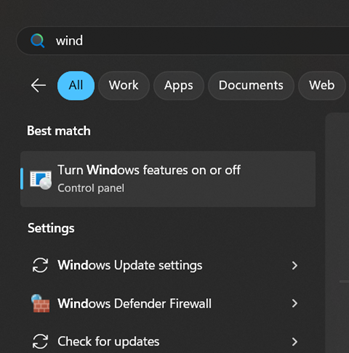
Open it and select Windows Subsystem for Linux and Virtual Machine Platform.
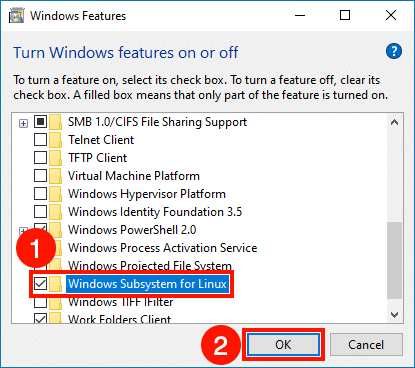
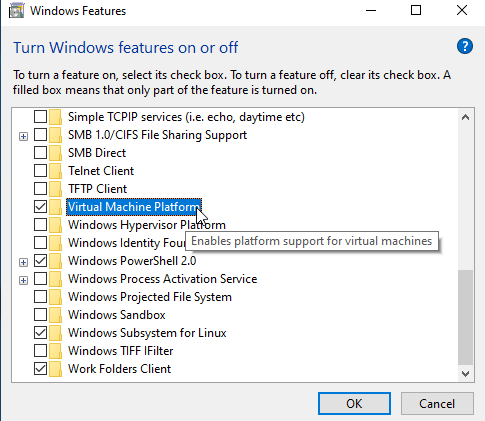
Select OK and allow Windows to install the feature.
Restart your computer when prompted.
Install Ubuntu
Open the Microsoft Store.
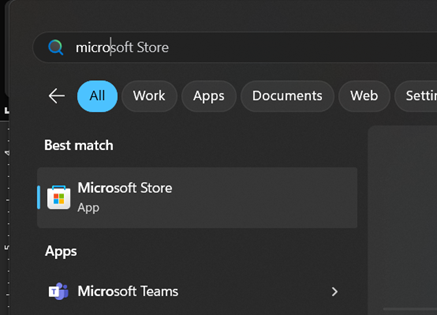
Search for Ubuntu.
Select the unversioned Ubuntu app and install it. If an unversioned app is not available, install the app with the highest version number.
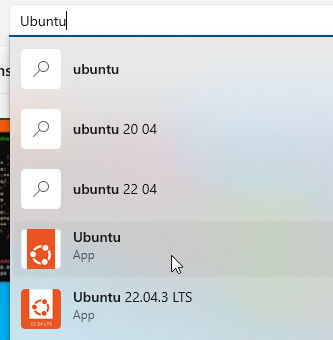
Open Ubuntu from the Start menu after installation finishes.
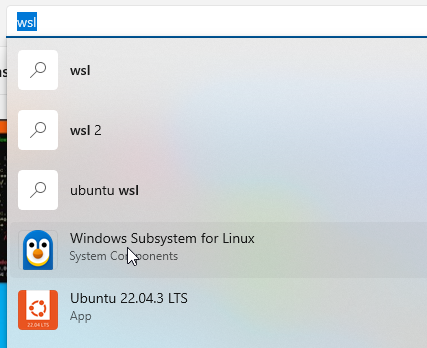
The first launch takes a few minutes to finish setting up Ubuntu. It then asks you to create a Linux username and password. Choose a password you can remember and keep it private. Linux does not display characters while you type a password; that is normal.
Install Linux development tools
In the Ubuntu terminal, update the available package information:
sudo apt update
Ubuntu checks its package sources and displays the available updates:
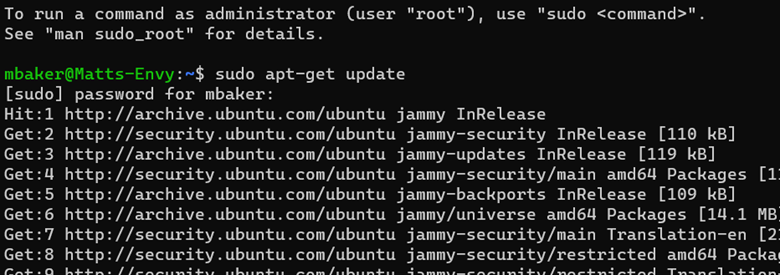
Enter the Linux password you created when prompted. Then install the compiler, debugger, Git, and Valgrind:
sudo apt install build-essential gdb git valgrind
Then test the tools:
g++ --version
make --version
gdb --version
git --version
valgrind --version
The project Makefiles use the default g++ command. The template's included IntelliSense
configuration may name a versioned compiler such as /usr/bin/g++-15. If VS Code shows
include errors, select the compiler you installed as described in
Troubleshooting.
Configure Git inside WSL
Git's Windows configuration is not automatically reused inside WSL. Follow Configure your identity from an Ubuntu terminal.
Navigating in the Virtual Machine
Windows drives appear inside WSL under /mnt. For example, C:\CSProjects is
/mnt/c/CSProjects in Ubuntu.
This video demonstrates how to navigate in WSL and access files stored in Windows:
This alternate walkthrough demonstrates the same Windows-file navigation in another version of Ubuntu:
After the commands work, connect VS Code to WSL.