Development Setup Troubleshooting
A command is not recognized
Run the command in a newly opened terminal. Install or repair the component if the test fails:
g++ --version
make --version
git --version
On native Windows, test mingw32-make --version instead of make --version. On macOS,
test g++-15 --version.
If a command works in one terminal but not VS Code, completely quit and reopen VS Code
so it receives the updated Path.
Include errors or wrong compiler
If the project builds but VS Code underlines valid #include statements:

Open the Command Palette.
Run C/C++: Select IntelliSense Configuration.

Select the compiler installed for the current environment.
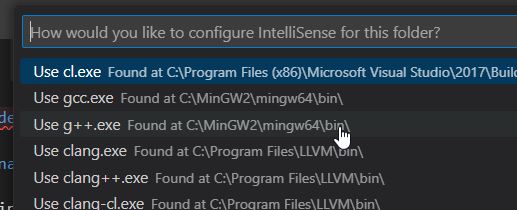
Expected locations include:
- Windows:
C:\mingw64\bin\g++.exe - Apple Silicon macOS:
/opt/homebrew/bin/g++-15 - Linux or WSL: the result of
which g++
The compiler can have a different path on Intel Macs or Linux distributions. Select the
path reported by which g++-15 or which g++ rather than copying another platform's
path.
VS Code runs in the wrong environment
On Windows, check the lower-left corner of VS Code:
- A normal Windows window uses the native MinGW compiler.
- A window labeled WSL: Ubuntu uses tools installed inside WSL.
- A Codespaces window uses the tools in the cloud development container.
Open a terminal in that window and run g++ --version to test the environment VS Code
is actually using.
The Run and Debug choices are missing
Open the entire project folder rather than an individual source file. Confirm that the
folder contains .vscode, Makefile, and the program or test source files.
Worklog is not making commits
Confirm that:
- the Chemeketa Worklog extension is installed in the current environment;
- you opened the entire project folder;
- the project came from a prepared Chemeketa template; and
git config --global --listshows your name and email.
Worklog does not push automatically. Use Sync Changes after it commits.
A Codespace says you are offline
Browser privacy settings or content-blocking extensions can prevent Codespaces from loading. Temporarily disable blocking for GitHub, allow the site's required cookies, or try a supported browser without privacy extensions.
Git reports a conflict
Stop editing and do not delete either copy. A conflict means two environments changed the same history. Preserve both versions and ask your instructor or tutor for help if you are unsure which changes to keep.
Before changing environments, complete the environment-switching checklist to prevent conflicts.